|
3D Replay requirements and FAQ
What you need on your PC to use these
visualizations
|
Software Requirements
The MBARI 3D dive replays have been constructed using open international
standards. 3D visualization on the Web is an evolving area, yet (currently) to
use these visualizations you must have the software listed below. If you have 3D graphics hardware and at least a 700 Mhz Pentium III CPU then the performance will be acceptable. (And yes, a Windows PC is required --
this is the only platform in which this
application has been successfully tested.)
For your convenience, the installers are all available from the MBARI network share (Windows only): \\tornado\ShipData\3Dreplay\Software. See the readme.txt for installation instructions.
The links on the web sites below are most likely not current, please use the installers available at the network share listed above.
With Netscape 4.7x (preferred):
- http://www.netscape.com
(Note: CosmoPlayer will not work in Netscape 6 and later. Netscape
4.7 and other browsers will peacefully co-exist on the same PC. Install Netscape
4.7 base you will be able to use the rest of this software and view the 3D
Replays - just think of it as another application that lets you view MBARI
dive data in 3D.)
- CosmoPlayer 2.2.1 http://www.cosmosoftware.com.
(Installer also available here: \\tornado\ShipData\3Dreplay\.)
- GeoVRML 1.1 runtime http://www.geovrml.org
(As of 28 July 2003 the GeoVRML1.1 Windows installer includes the 1.1 versions
of the GeoProximitySensor and GeoTransform nodes.)
With Internet Explorer 4 and higher:
Please see example
screen shots and an avi movie of what is possible with this system.
Directory where installers are available (Windows only): \\tornado\ShipData\3Dreplay\Software. See the readme.txt for installation instructions.
Unless you enjoy exploring new VRML worlds on your own I highly recommend
asking me to help configure your computer and to walk you through how best to
use the navigation controls. Please call me at (831) 775-1769 or email me mccann@mbari.org.
If you wish to continue on your own please read the information below on how
to configure your browser and navigate the worlds.
Frequently Asked Questions
What are the keyboard keys I press in Netscape/CosmoPlayer
to move around the world?
For reference here are the keyboard accelerators for use in navigating these 3D worlds:
- Shift - Click #1 mouse button once: Executes a seek to the object you point at, also resets the point of rotation.
- Shift - Click-hold #1 mouse button and drag the mouse: Rotates view around rotation point (use above method to reset the rotation point).
- With Ctrl key held down Shift - Click-hold #1 mouse button and drag the mouse: Zooms in and out of the scene. Use this to back up after you have seeked too close to an object.
- With Alt key held down Shift - Click-hold #1 mouse button and drag the mouse: Pans up, down, left, right in the scene.
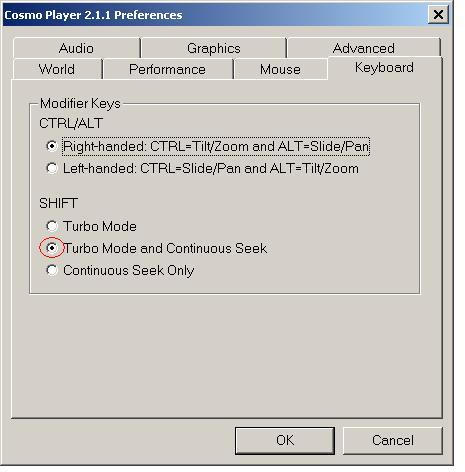
In order for these keyboard accelerators to work you must have "Turbo Mode and Continuous Seek" selected in your CosmoPlayer Preferences:
Here is a paragraph from the
2002 Web3D Symposium paper describing the navigation features of this system:
Navigating a 3D world with a mouse that moves in 2D is always a
challenge. For viewing 3D Dive Replays, the CosmoPlayer
VRML browser is preferred because of the utility of its Examine
functions. The user can position the ROV to an area of interest
along the dive track and “Seek” on it. This action resets the center
of rotation to the seek point and moves the viewpoint closer. He
or she can then rotate about this point to visualize nearby features.
To facilitate this mode of operation, the default behavior of the
Shift key should be changed. In CosmoPlayer’s preferences,
Keyboard tab, select the “Turbo Mode and Continuous Seek”
option. With this setting the Shift key now modifies the action of
the mouse. The user holds the Shift key down and clicks once to
Seek to a point. To rotate about this point the user holds the Shift
key down, clicks and holds the mouse button down while moving
the mouse. With the Shift key held down, the Alt and Ctrl keys
can be used to switch to the Pan and Zoom controls. The Shift key
also disables TouchSensors within the world. A little
experimenting and practice will give the user confidence in
navigating the 3D world to provide whatever view of the data is
desired. If the user gets lost in the world then one of the set
viewpoints can be selected to reset the view.
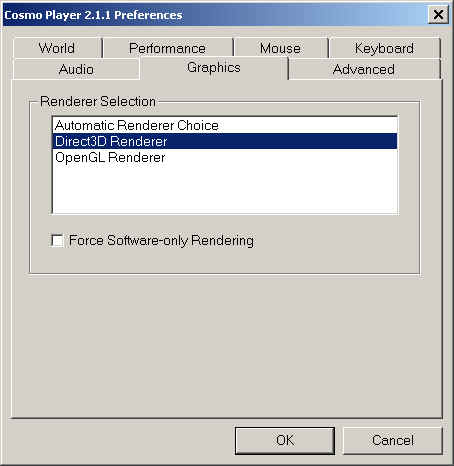
Which renderer should I use in CosmoPlayer?
I have had better experience with the Direct3D Renderer in CosmoPlayer; it
does a better job of showing the dive profiles above the terrain.
How do I navigate in Cortona?
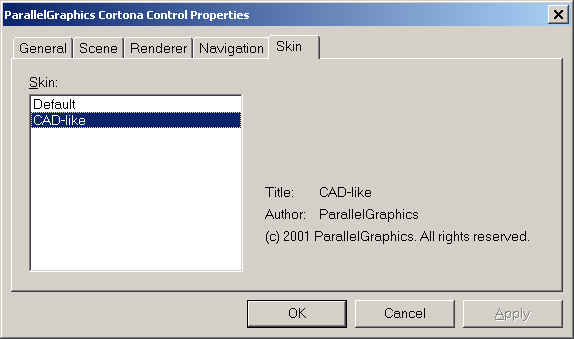
I recommend using the CAD-skin as this provides similar navigation functions
to CosmoPlayer's Examine mode.
Right click to bring up Preferences and select the CAD-like Skin:
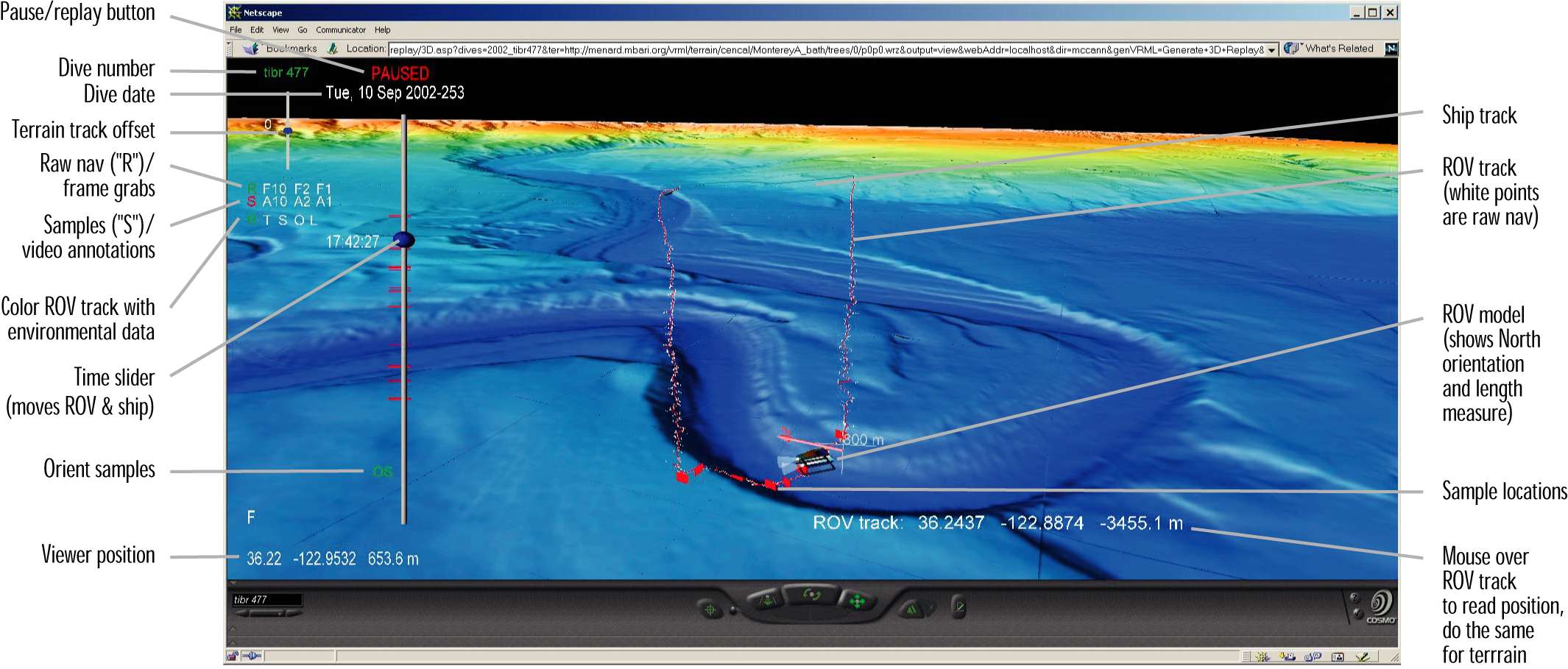
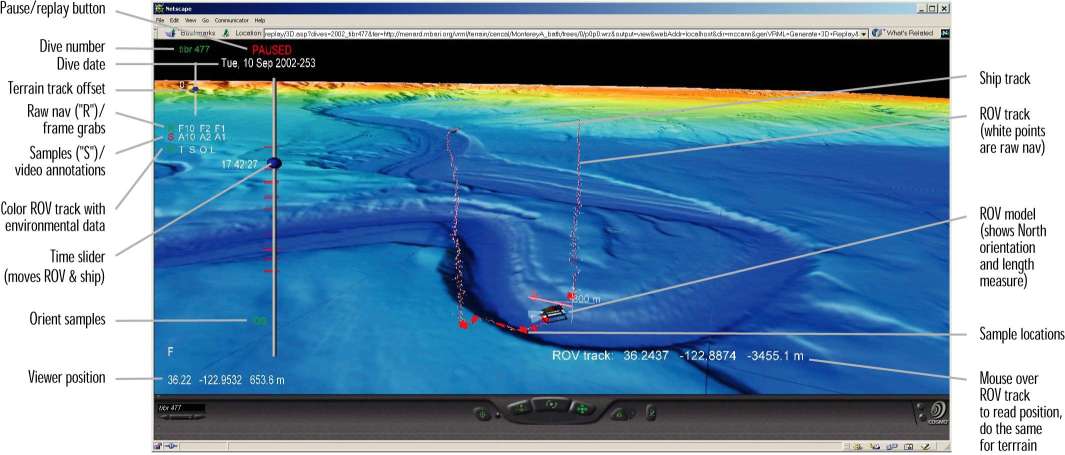
What are the controls on the left?
Each dive has it's own individual set of controls that can be used to load in
additional data for the dive, color the dive track with the ROVCTD data, adjust
the height of the dive track relative to the terrain, and control the playback
of the dive.
The letters (which are also buttons) have roll-over text to help you remember what they do.
The large slider controls the ROV and ship position/orientations according
to their time history. The GMT time is displayed on the left of the blue ball
and updates only when you let go of the slider. The smaller slider in the upper
left controls the vertical offset of the dive track relative to the terrain. You
can adjust this plus or minus 25 m. The dive name in green is the one whose controls
are active. To activate controls for another dive click on the green dive name to turn that one
off
(the controls are unloaded) and then click on another dive name (those controls are loaded).
Here is an image showing these functions and other elements of the 3D Replay:
(Click image for larger version)
The 3D Replay worlds no longer load in my browser. How
can I fix this?
CosmoPlayer caches many of the files that are downloaded into the browser.
This includes texture maps, geometry for the terrain, the external prototypes
that make up the 3D Replay application, and external prototypes that support
the GeoVRML operations. Occaisonally, one of these cached files may become corrupt
- at least that is my suspicion. A corrupt cached file may lock up CosmoPlayer
such that it cannot successfully load a 3D Replay. A remedy for this is to remove
the cached files. To do this on Windows open a command window, cd to %TEMP%,
and remove all cp* files:
- Go to Start -> Run..., enter cmd
in the Open: text area and press enter or click OK
- In the window that pops up enter the following at the c:\>
prompt:
     cd %TEMP%
     del cp*
Open Netscape and try reloading a 3D Replay.
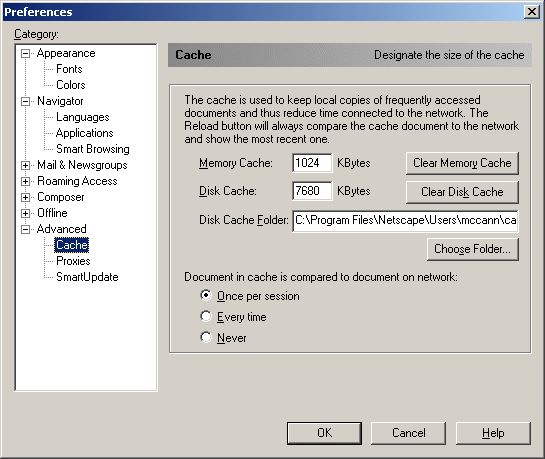
Most of the time clearing the CosmoPlayer cache following the above directions
fixes the problem. Occasionally, the Netscape cache also needs to be cleared.
To do this open Netscape's Edit --> Preferences window, and click both the
Clear Memory Cache and Clear Disk Cache buttons on the Advanced Cache panel:
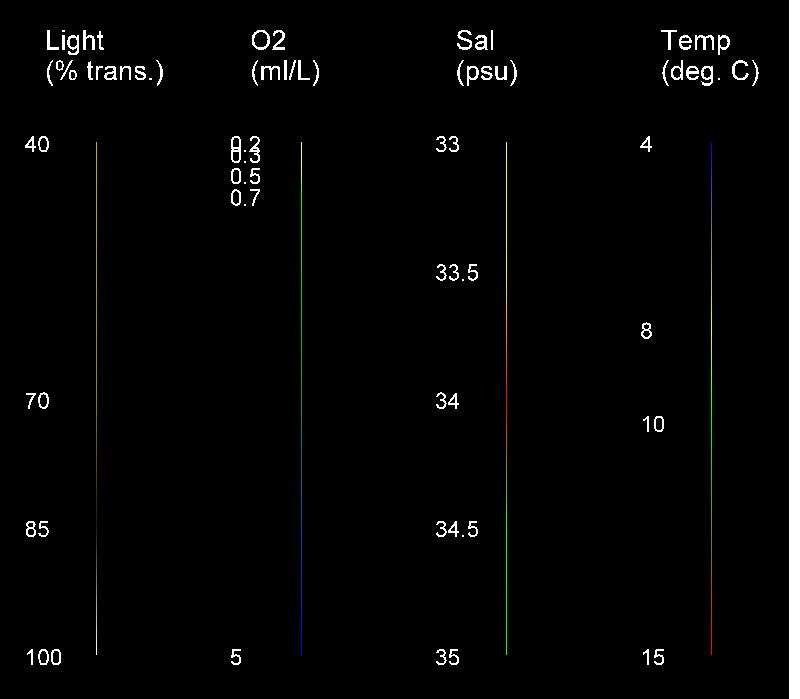
What is the color lookup for the ROVCTD data mappings?
See:
Additional
screen shots
Last updated: 17 September 2003, Mike McCann